
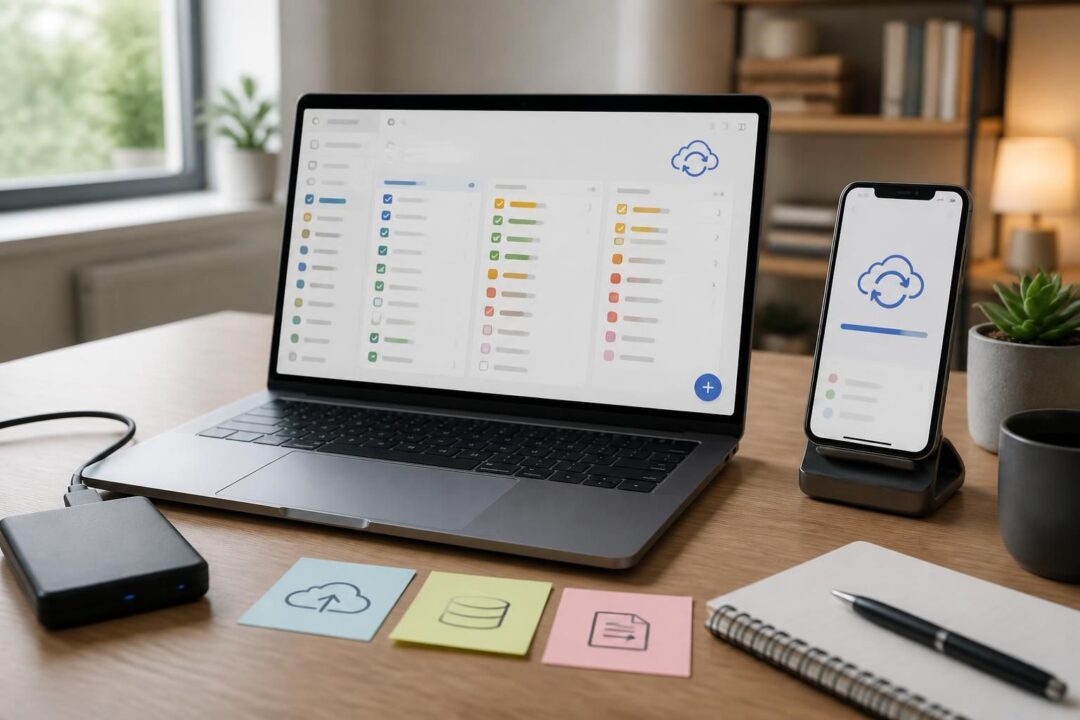
Task lists rarely fail in dramatic ways. Instead, they slip: a phone shows old items, a laptop duplicates projects, or a “completed” task returns like a stubborn boomerang. In 2026, most To-Do List Software promises instant availability across devices, yet real life still includes weak Wi‑Fi, multiple accounts, corporate security policies, and human habits like switching phones midweek. Consequently, the most useful help is practical: how to Sync reliably, how to verify Backups, how to plan a clean Data Export, and how to start Getting Unstuck when the system feels heavier than the work itself.
This reference-style FAQ guide treats these concerns the way an operations team would. It focuses on repeatable checks, not one-off hacks. Moreover, it uses one ongoing scenario—a small marketing team at “Harbor & Pine”—to make the fixes tangible. Their coordinator, Lena, manages launch tasks on Windows and the web, while teammates check lists on iOS and Android. That split mirrors many modern setups. Therefore, the goal is simple: protect your Task Management data, reduce friction, and keep your Productivity system resilient when tools misbehave.
- How Sync usually works across phone, computer, and web, and what to verify first when it doesn’t.
- How in-app support centers (such as Microsoft To Do’s Help & Feedback) speed up Troubleshooting.
- How to think about Backups versus sync copies, and how to confirm a restore path before you need it.
- How to do a clean Data Export for audits, migrations, or personal archives.
- How to get unstuck when lists multiply, priorities blur, or a system stops being trusted.
To-Do List Software Sync FAQ: What “Sync” Really Means in Daily Task Management
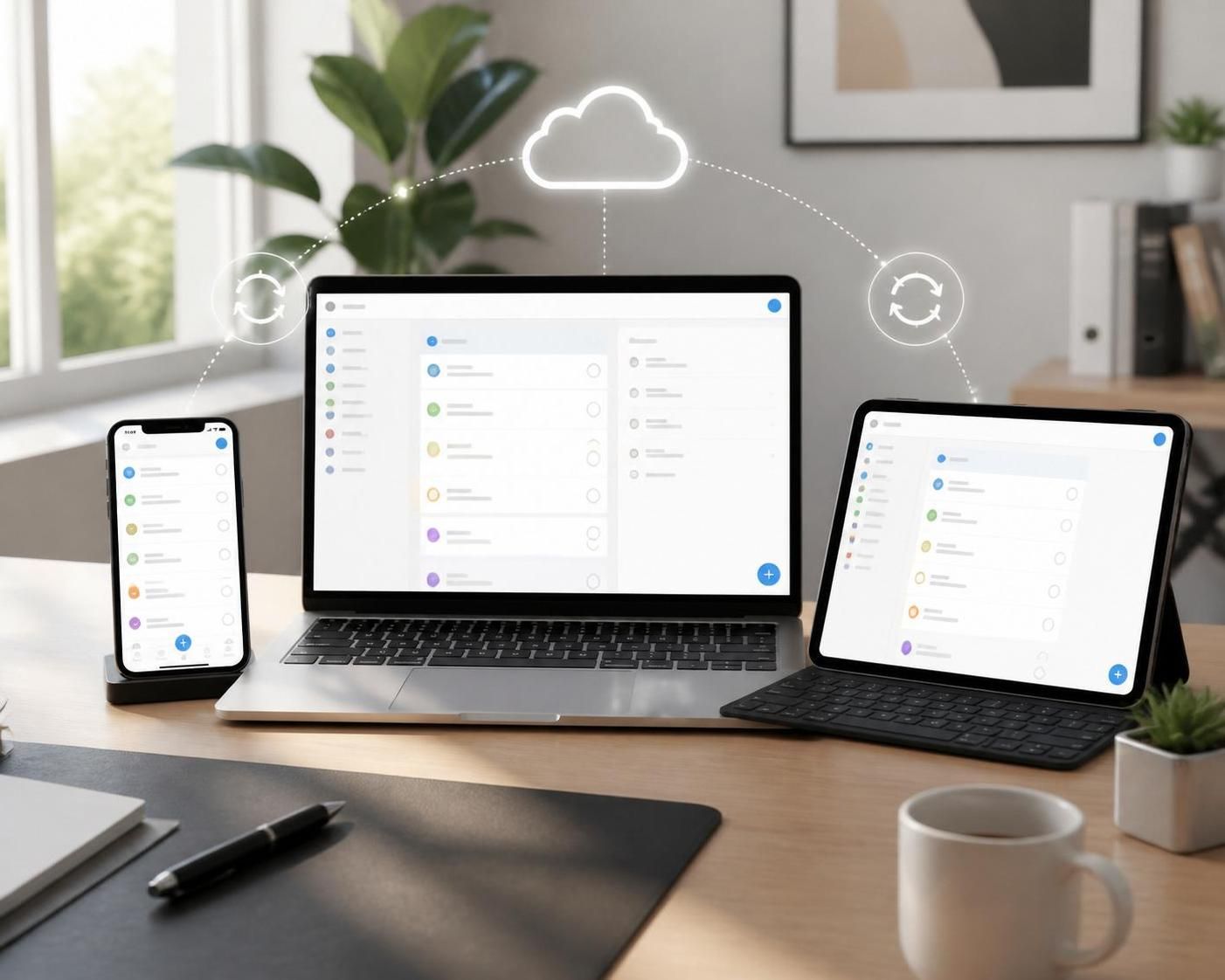
Sync sounds binary: either the list matches everywhere, or it does not. However, most apps rely on a chain of events: your device writes changes locally, the app uploads them, the server merges them, and other devices pull the update. Each link can lag or break. Therefore, effective Troubleshooting starts by identifying which link failed.
Consider Harbor & Pine. Lena adds a “Finalize vendor deck” task on her Windows laptop. A teammate on Android expects to see it during a client visit. If the task does not appear, the issue could be sign-in mismatch, offline mode, background restrictions, or a server-side delay. Consequently, the first question is not “Is the app broken?” but “Which device and account hold the newest truth?”
Account and identity checks that solve most sync surprises
Many sync problems come from simple identity drift. For instance, a phone might use a personal email while a work laptop uses an organizational account. The lists look similar, so the mismatch hides in plain sight. Therefore, confirm the same account on each device before changing settings.
Microsoft To Do, for example, syncs tasks and lists between computer and phone when you sign in with the same account. Moreover, it refreshes frequently—often within seconds—so long gaps usually signal a blocker rather than normal timing. If tasks live on Exchange Online, they can also appear in Outlook Tasks. That connection helps, because Outlook can act as a cross-check when the app view looks off.
Network, background activity, and “it works on web” diagnostics
When sync stalls, switching to the web app can narrow the cause. If the web view shows the newest edits, then the server has them. As a result, the problem likely sits on the lagging device. If the web view lacks the changes too, then the upload never completed or the wrong account is in use.
On mobile, battery optimizations can pause background refresh. Likewise, VPN profiles and captive portals at airports can block connectivity without obvious error messages. A practical test helps: create a tiny task like “Sync test 1,” then check whether it appears on another device within a minute. If it does, the system still works, so focus on the specific project or list that misbehaves.
Common sync failure modes and what they look like
Duplicates often come from partial merges or repeated imports. On the other hand, missing tasks may result from filters, hidden completed items, or a different list view. Therefore, verify filters and sort rules before assuming data loss.
In Harbor & Pine’s case, Lena once “lost” a set of tasks because she switched to a filtered view that only showed flagged items. The tasks existed, yet the UI made them invisible. That experience matters, because Sync issues sometimes reflect display choices rather than server failures. The key insight: confirm what the app is showing, not only what it stores.
Next, it helps to know where to get fast, tool-specific help when the basics do not resolve the mismatch.
Support Center FAQ for To-Do List Software: In-App Help, Messaging, and Org Admin Paths
Even well-designed To-Do List Software can fail in ways that require vendor help. However, searching the web often wastes time, because version changes make older posts unreliable. Therefore, in-app support centers usually provide the fastest, most current route to answers.
Microsoft To Do is a good example of this support pattern. If you have a question, the in-app support center lets you search FAQs, contact support, or suggest features. Moreover, this flow reduces guesswork because it starts from the exact build running on your device.
How to reach support quickly on mobile and desktop
Many apps place help under account settings. In Microsoft To Do, you can tap your username to open account settings. Then, under Help & Feedback, choose “Get support.” From there, you can search help articles or move to contact options.
If you need to communicate with support, in-app messaging often works better than email threads. For Microsoft To Do, you access messaging after going to “Get support,” then using the messaging entry in the top right corner. Consequently, the support team can request device details and app context without a long back-and-forth.
What information to gather before contacting support
Support teams resolve issues faster when you provide a tight problem statement. For instance, “Sync is broken” is vague. Instead, capture the scope: which device, which account, what changed last, and what you expected to see. Moreover, note whether the web version shows the correct state, because that single fact often isolates the cause.
Useful details include the list name, approximate time of last successful refresh, and whether the issue affects one list or all lists. Likewise, screenshots of filters and sorting can expose “invisible” tasks. If your organization uses managed devices, mention any recent policy changes, because security tools can block background access.
Org admin escalation when work accounts are involved
When tasks tie into business services, individual users may hit permission walls. Consequently, organizations should use official admin support channels. Microsoft directs organization administrators to Microsoft 365 business support paths for account and service-level issues. That route matters when Exchange Online integration or sign-in policies interfere with Task Management.
In Harbor & Pine, the team once saw repeated sign-in prompts after an MFA policy update. The fix required an admin to adjust conditional access settings for mobile. This illustrates a broader point: app-level Troubleshooting sometimes depends on identity infrastructure. A final insight: know whether the bottleneck is personal settings or organizational controls before burning hours on device resets.
Once support paths are clear, the next resilience layer is understanding backups, which differ from sync in important ways.
Backups FAQ: How Backups Differ from Sync, and How to Build a Reliable Restore Plan
Sync copies data across devices, but it does not guarantee recovery. If a task gets deleted and that deletion syncs, the system faithfully propagates the mistake. Therefore, Backups exist to provide a point-in-time safety net, separate from day-to-day replication.
This distinction matters for both individuals and teams. Harbor & Pine once bulk-deleted tasks during a reorg. Sync worked perfectly, which meant the loss spread instantly. Consequently, the team needed a restoration path, not a faster refresh.
What “backup” looks like across popular task tools
Some apps provide explicit backup and import features. TickTick, for example, offers a web-based “Backup & Import” area under account settings, where users can generate backups, import existing backups, and bring in tasks from other tools. Moreover, that approach recognizes that migration and disaster recovery are normal parts of Productivity systems.
Other tools rely more on account-level storage with limited user-managed backup options. In those cases, a practical workaround is periodic Data Export to a stable format, stored outside the app. Although exports are not always perfect restores, they create an audit trail and a recovery reference.
A backup checklist that teams can actually follow
Backups fail most often because nobody tested a restore. Therefore, treat backup planning as an operational drill. Even a lightweight quarterly test can prevent panic later.
- Pick a backup method: built-in backup file, export format, or both.
- Choose a cadence tied to change rate: weekly for high-churn teams, monthly for stable personal lists.
- Store copies in two locations, such as a company drive and a secured personal archive.
- Run a restore test into a sandbox account or an empty workspace.
- Document who owns the process, especially for shared project lists.
Table: Backup options compared for operational readiness
| Approach | Best for | Strength | Risk to watch |
|---|---|---|---|
| Built-in backup file (where offered) | Fast restores and migrations | Often preserves structure and metadata | May require the same app/version to import cleanly |
| Scheduled Data Export (CSV/JSON, etc.) | Audits, reporting, long-term archives | Readable outside the tool | May lose comments, attachments, or repeating rules |
| Server-side account storage (sync-only) | Everyday continuity across devices | No manual steps for routine use | Propagates accidental deletions quickly |
| Secondary system copy (e.g., Outlook tasks mirror) | Cross-checking and redundancy | Independent view of the same items | Field mapping differences can confuse status and dates |
A reliable backup plan reduces fear. As a result, it becomes easier to clean up lists and export data without worrying about irreversible damage.
Data Export FAQ: Clean Exports for Audits, Migrations, and Long-Term Productivity Records
Data Export serves several purposes at once. It supports compliance reviews, tool migrations, performance analysis, and personal archiving. However, exports often disappoint when expectations are unclear. Therefore, define the goal first: is the export meant for re-import, for reporting, or for proof of work?
Harbor & Pine needed an export for a client audit. They did not need a perfect re-import. Instead, they needed a defensible record of decisions, deadlines, and completion. Consequently, they focused on fields like task title, due date, completion date, assignee, and project label, while storing attachments separately.
Pre-export cleanup that prevents messy files
Exports reflect whatever chaos exists in the workspace. Therefore, it helps to normalize names and reduce duplicates before pulling data. For instance, merge “Website Launch,” “Web Launch,” and “Site launch” into one project naming convention. Likewise, standardize tags so that “Urgent” and “HighPriority” do not split your reporting.
Also, decide what counts as historical noise. Completed tasks from two years ago might bloat the export. On the other hand, those tasks may matter for trend analysis. A simple rule works well: export everything for archives, yet filter to the last quarter for operational reporting.
Field mapping: what usually survives, what often breaks
Most To-Do List Software can export basic fields. Titles, due dates, and completion flags often transfer well. However, recurring schedules, nested subtasks, and reminders can degrade into plain text. Therefore, review a sample export before committing to a full migration plan.
Comments and attachments also vary. Some tools include them in separate files or links. Others omit them. Consequently, teams should create a parallel capture for supporting material, such as saving key links into a shared document repository with stable naming.
Practical workflows for different export goals
If the export is for reporting, then a CSV file often works best. It plays nicely with spreadsheets and BI tools. Moreover, you can pivot by assignee, status, or due date to spot bottlenecks in Task Management. If the export is for migration, then prioritize a format that the destination tool can import with minimal manual edits.
For example, when moving from one platform to another, a team can first export one small project, import it into the new Software, and compare results. Then, refine tag rules and date formats before migrating everything. This staged approach prevents a “big bang” failure. The insight: treat Data Export as a testable pipeline, not a one-time button click.
Once data can be backed up and exported, the last challenge is emotional and operational: how to get unstuck when the system stops helping.
Getting Unstuck FAQ: Troubleshooting Overwhelm, Broken Trust, and Workflow Gridlock
Getting Unstuck often starts after trust breaks. A missed sync, a duplicate storm, or a lost deadline can make a Productivity tool feel unsafe. However, the fix rarely requires a new app. Instead, it typically requires restoring reliability, simplifying capture, and reducing decision friction.
In Harbor & Pine, Lena noticed that teammates stopped checking the shared list. They used side chats and sticky notes instead. Consequently, the “single source of truth” disappeared, and work began slipping. The team needed both technical Troubleshooting and behavioral reset.
Restore trust with a short, structured reset
A reset does not mean deleting everything. Therefore, keep it bounded: pick one active project and rehabilitate it first. Confirm that Sync works on all devices using a simple test task. Then, verify that everyone uses the same account and workspace. Finally, agree on where new tasks must land, even if they also appear elsewhere.
Next, reduce list sprawl. Many people create new lists when they feel behind. On the other hand, too many lists increase scanning time and anxiety. A practical rule: one inbox, a small set of core project lists, and a waiting-for list. That structure keeps capture easy while preserving accountability.
Operational heuristics that reduce daily friction
Even great Software fails when workflows demand constant decisions. Therefore, define defaults. For instance, every task gets a next action verb, a due date only when real, and a single owner. Moreover, use priorities sparingly, because five “high priority” items are not a priority system.
- Write tasks as actions: “Call supplier,” not “Supplier.”
- Use one shared label for blockers, such as “Blocked,” to speed triage.
- Set a weekly review time to prune, merge, and clarify.
- Keep an “Someday/Maybe” list so ideas stop clogging the active queue.
When technical troubleshooting and workflow design meet
Sometimes the “stuck” feeling comes from the tool’s settings. Filters can hide overdue work. Notifications can overwhelm, so users mute everything, then miss key changes. Therefore, tune alerts to roles: creators get reminders, reviewers get digests, and stakeholders get summaries.
In Lena’s team, a simple change helped: they moved status updates into a daily checklist and reserved comments for decisions. As a result, exports became cleaner and audits became easier. The closing insight: the best To-Do List system is not the most feature-rich, but the one that stays trustworthy under pressure.
Why do tasks sync on the web but not on a phone?
Usually the server has the latest data, so the phone is the weak link. Check that the phone uses the same account, that the app can run in the background, and that battery or VPN settings are not blocking network access. Then create a small test task and confirm it appears elsewhere within a minute.
If sync exists, why bother with backups?
Sync mirrors changes, including mistakes. If a task gets deleted or a list is overwritten, sync can spread the loss to every device. Backups or periodic exports give you a point-in-time recovery option and a reliable audit trail.
How can Microsoft To Do users reach support from inside the app?
Open account settings by tapping your username, then go to Help & Feedback and select “Get support.” From there you can search help content. If you need direct help, use in-app messaging, typically accessible from the top right corner after you enter the support area.
What should be cleaned up before a Data Export?
Standardize list names and tags, remove obvious duplicates, and decide how much history to include. Also verify filters so you export what you think you are exporting. Finally, test-export a small project first to confirm that dates, assignees, and completion status come through correctly.
What is a fast way of getting unstuck when the list feels overwhelming?
Start with a bounded reset: pick one active project, confirm sync reliability with a test task, and define defaults for task writing and ownership. Then create one inbox, limit active lists, and schedule a weekly review to prune and clarify. This approach restores trust while reducing daily decision load.

With over 30 years of experience, I specialize in streamlining operations and enhancing productivity. As an Operations Consultant and Editor at EfficientToDoList.com, I am passionate about helping individuals and organizations manage their tasks more effectively.