For many Windows users, the biggest productivity problem is not effort. It is fragmentation. Tasks sit in flagged emails, chat messages, meeting notes, sticky notes, and half-finished notebooks. Consequently, the day starts with good intentions and ends with missed follow-ups.
Free To-Do List options can fix that, but only if “free” means usable. In 2026, plenty of apps advertise a free tier yet lock the essentials behind paywalls. Therefore, the most practical picks are the ones that let you capture tasks fast, keep them synced on Windows, and support a working system that does not demand constant maintenance.
- Windows Software matters: native apps, reliable sync, and keyboard-first capture change daily use.
- Free tiers vary wildly: some allow real workflows, while others act like timed demos.
- Task Management succeeds when capture takes seconds and reminders actually fire.
- Calendar-linked Task Scheduling prevents overbooking and missed deadlines.
- Different brains need different To-Do List Features, so the “best” tool depends on how you plan.
Best Free To-Do List Software for Windows in 2026: what “tested” should mean
Testing Task Management Software on Windows starts with friction. If adding a task takes multiple clicks, the tool loses before it begins. Therefore, the first benchmark is capture speed: can you type a task, assign a date, and move on in under ten seconds?
Next comes sync reliability, because Windows users often split time across a desktop, a web browser, and a phone. When a task appears late, trust disappears. Moreover, delayed sync causes duplicate work, since people re-enter tasks “just in case.”
A useful Free To-Do List also needs flexible organization without forcing a single method. Some people think in projects and sub-tasks. Others think in tags, filters, and saved views. Consequently, strong Task Organizer design supports multiple approaches without turning setup into a weekend project.
Smart reminders matter just as much as organization. A due date that never notifies is worse than no due date at all. Likewise, a reminder that fires at the wrong time trains you to ignore notifications. On Windows, notifications must play well with Focus Assist, multi-monitor setups, and work profiles.
Finally, pricing has to be evaluated with realism. A free tier should support daily use, not just a “trial in disguise.” In addition, paid tiers should justify cost with clear benefits, such as better views, more reminders, or collaboration. Otherwise, a free option becomes the smarter long-term decision.
A practical Windows test loop that reveals real strengths
A consistent way to test Productivity Tools is to run the same week through each app. For instance, load a mixed workload: recurring bills, two meetings, a grocery list, and a work deadline. Then measure what happens when life changes midweek.
Imagine a small operations team at a local property management firm. They handle maintenance requests, tenant emails, and vendor scheduling. On Monday, a water heater fails. On Tuesday, a vendor reschedules. By Thursday, an owner requests an update. Therefore, the app must support quick capture, re-prioritizing, and clear Task Tracking without chaos.
During testing, watch for three failure modes. First, tasks get buried because the “Today” view cannot be shaped. Second, reminders are noisy or unreliable. Third, the free plan blocks basic workflows, such as creating enough lists or adding recurring items.
Windows users should also check keyboard shortcuts and system-wide quick add. When a tool respects fast input, it becomes a habit. That habit, in turn, determines whether you complete what you planned. The core insight is simple: usability is a feature, not a luxury.
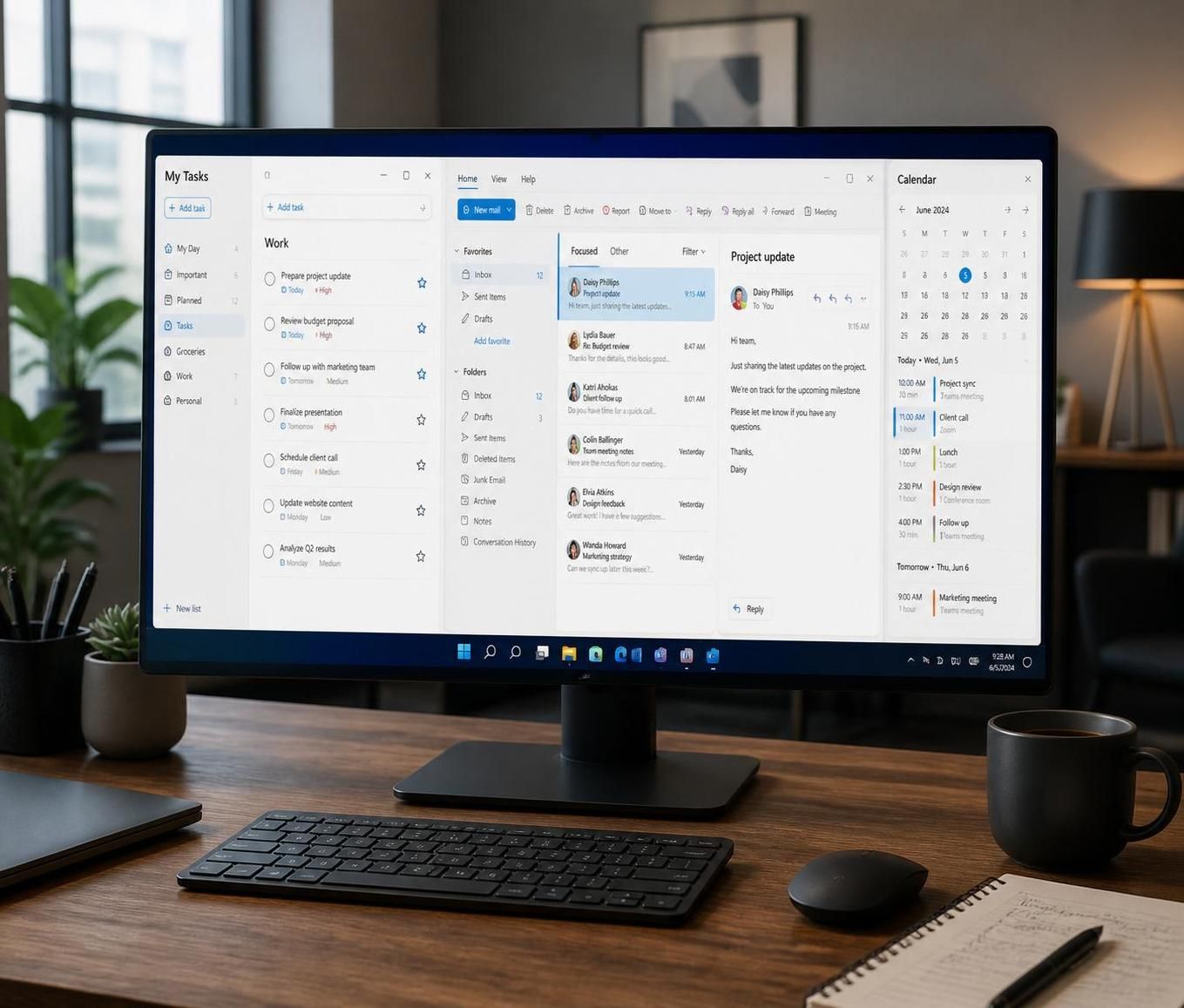
Best To-Do Apps 2026 on Windows: free-tier comparison that actually affects daily work
Many lists rank apps by popularity. However, popularity does not predict whether the free tier supports real Task Management. What matters is whether Windows users can run a full week without hitting a paywall.
TickTick, Todoist, Microsoft To Do, Google Tasks, and Any.do dominate mainstream conversations. Yet they differ sharply in what they allow for free. Therefore, a comparison must focus on limitations that interrupt normal planning: caps on projects, reminders, views, or device access.
| App (Windows-ready) | Best for | Free tier reality | Key To-Do List Features | Typical friction point |
|---|---|---|---|---|
| Microsoft To Do | Outlook-heavy workflows | Truly free, no premium tier | My Day, flagged email sync, steps | Limited non-Microsoft integrations |
| Google Tasks | Gmail + Calendar users | Free, simple, unlimited basics | Email-to-task, calendar visibility | Basic organization and parsing |
| TickTick | Calendar + tasks + habits | Generous, usable for serious solo work | Calendar view, smart lists, timer, habits | Fewer deep third-party automations |
| Todoist | Filters, shortcuts, integrations | Free works, but limits projects | Labels, filters, templates, NLP | Advanced features skew paid |
| Any.do | Daily planning prompts | Free exists, but reminders are constrained | Plan My Day, calendar view, location alerts | Value depends on the prompt habit |
How to read the table like an operator, not a shopper
A table helps, yet the decision happens in your calendar. If email drives your workload, Microsoft To Do often wins because flagged emails become actionable items. Consequently, you spend less time copying details into a separate Task Organizer.
If the day revolves around Google Workspace, Google Tasks offers a low-friction path. Drag an email into Tasks, then see that item on the calendar. As a result, Task Scheduling becomes more realistic, since tasks live next to meetings.
TickTick tends to fit people who want one hub. It combines task lists, a calendar view, and focus tools. Therefore, it reduces “app switching,” which quietly drains attention across a week.
Todoist shines when you need custom views that feel like saved searches. For instance, a Windows user can create a filter for “next 7 days + priority 1 + work label.” That view becomes a daily cockpit. However, if the free project cap blocks your structure, you will feel constrained.
Any.do can outperform more powerful apps for one reason: it prompts daily planning. If you forget to check tools, that behavioral nudge matters. The key insight is that the best free choice is the one you will open tomorrow morning.
To see how these apps handle real Windows-based workflows, the next step is to examine the strongest free experience for email-driven task intake.
Microsoft To Do on Windows: the most practical Free To-Do List for Outlook-centric Task Management
Microsoft To Do often surprises people because it feels complete without charging for basics. On Windows, that matters, since many users already live inside Microsoft 365. Therefore, the app’s value comes less from novelty and more from tight integration.
The flagship workflow is email-to-task through Outlook. Flag an email, and it appears as a task. In addition, you keep context, which prevents the classic mistake of writing “Reply to vendor” without the relevant thread attached.
To Do also nudges daily focus through “My Day.” Each morning, it asks you to pick what matters today. Consequently, you stop staring at a backlog and start building a doable plan. This design supports Task Tracking because completion becomes visible at the day level, not just the month level.
Case example: turning a chaotic inbox into scheduled action
Consider a Windows user supporting a small nonprofit. The inbox contains donation questions, event logistics, and volunteer scheduling. Without a system, those emails become anxiety.
With Microsoft To Do, the workflow becomes straightforward. Flag the three messages that require action. Then move them into “My Day” and add a reminder for the one that needs a 3:00 p.m. follow-up. As a result, the inbox stops being a task list.
Steps (subtasks) help when a task is really a checklist. For instance, “Prepare board packet” can include “Export financials,” “Confirm agenda,” and “Send PDF.” That breakdown improves Task Management because it prevents “big vague tasks” from lingering for weeks.
Where Microsoft To Do fits, and where it will feel thin
For lightweight collaboration, shared lists work well for households or small teams. However, it is not built for complex dependencies or deep automation. Therefore, it excels as Windows Software for personal productivity and simple coordination, not as a full project suite.
It also lacks built-in habit tracking and focus timers. If habits and deep-work sessions define your routine, you may want an all-in-one tool. Still, for many Windows professionals, To Do solves the real pain: converting messages into actions with minimal effort. The operational insight is that email is not the enemy, but unmanaged email is.
When Outlook is not the center of the day, the next strongest “free and simple” option comes from Google’s ecosystem, especially for people who schedule everything on a calendar.
Google Tasks and calendar-based Task Scheduling on Windows: simple, fast, and free
Google Tasks rarely wins design awards. Nevertheless, it performs well when your workflow already runs through Gmail and Google Calendar. On Windows, that can be a major advantage, since many organizations rely on browser-based work.
The killer feature is proximity. Tasks appear where you already spend time. Drag an email into the Tasks sidebar, and you create a linked action item. Consequently, you stop rewriting context, and you reduce mistakes caused by missing details.
Google Tasks also supports calendar visibility. When you add a due date, the task shows on Google Calendar. Therefore, you can plan with reality in mind, not with optimistic lists that ignore meetings.
Using Google Tasks as a minimalist Task Organizer without losing control
A simple system can still be structured. For instance, create separate lists: “Work,” “Home,” and “Errands.” Then star the two items that must happen today. That approach keeps the tool light while still supporting prioritization.
However, the simplicity has costs. There is no sophisticated natural language parsing. Likewise, filtering and tags remain limited. If you manage dozens of moving parts, the app can feel like a notepad with checkboxes.
Still, for a large group of Windows users, “not complicated” is the point. People who bounce off complex Task Management Software often succeed when the tool stays out of the way. The insight is that consistency beats complexity.
When Google Tasks is not enough
If you need strong Task Tracking by context, such as “waiting on” or “phone calls,” Google Tasks will feel tight. Moreover, if you want habit building, focus timers, or multiple views like Kanban, you will quickly outgrow it.
At that point, you need a more feature-rich tool that still feels approachable. That is where TickTick and Todoist compete, since they offer power without forcing you into enterprise project management. The practical question becomes: do you want an all-in-one cockpit or a highly customizable task engine?
TickTick vs. Todoist on Windows: To-Do List Features that decide the winner for your brain
TickTick and Todoist often sit at the top of Best To-Do Apps 2026 lists for a reason. They balance speed and depth, and they run well on Windows. However, they serve different planning personalities.
TickTick behaves like a compact productivity suite. It blends tasks with a calendar view, a habit tracker, and a Pomodoro-style focus timer. Therefore, it suits people who want fewer separate Productivity Tools.
Todoist, by contrast, behaves like a precision instrument for Task Management. It focuses on projects, labels, filters, and integrations. Consequently, it fits users who want their task list to act like a queryable database, without the overhead of a full workspace platform.
TickTick on Windows: one app that reduces switching costs
TickTick’s all-in-one approach helps when the day includes planning, execution, and review. For instance, a freelancer can drag tasks onto a calendar to block time. As a result, Task Scheduling becomes visible, and overcommitting becomes harder.
The built-in timer also changes behavior. When a task gets a 30-minute focus block, it stops feeling endless. Moreover, time tracking helps estimate future work with less guesswork.
The habit tracker matters because habits and tasks compete for attention. If exercise, reading, or daily writing belongs in the same system, you reduce the chance that long-term goals disappear under urgent requests. The insight is that the urgent always wins unless the system protects the important.
Todoist on Windows: filters, integrations, and keyboard-first control
Todoist excels when organization needs to be dynamic. A filter can surface “overdue + priority 1 + work label,” which creates an immediate rescue list. Therefore, you can triage fast without reorganizing everything.
Its natural language input is also strong. Type a task with “next Monday 2 pm p1,” and it converts to structured data. Consequently, capture stays fast even when tasks require scheduling detail.
Integrations remain a core advantage. If finishing a task should trigger a message in Slack or a workflow in Zapier, Todoist usually supports it. That flexibility helps teams that stitch together multiple apps, even when they are not ready for heavier project platforms.
A decision guide that avoids feature-chasing
Choose TickTick if you want one home for tasks, habits, and focus sessions. Choose Todoist if you want the best filtering and broad automation. However, the free tier experience should decide the first trial, since early momentum matters.
Before committing, run a two-week test with real tasks. Add items from your phone, check them on Windows, and reschedule them when plans change. If the tool lowers stress and increases follow-through, it is doing its job. The insight to keep is simple: the best system is the one you maintain on your hardest week.
Which Windows app is the best truly free option for Task Management?
Microsoft To Do is the strongest truly free choice for many Windows users, especially if Outlook drives incoming work. It supports unlimited lists and tasks, daily planning with “My Day,” and email-to-task handling through Outlook flags.
What should you check first when evaluating a Free To-Do List app on Windows?
Start with capture speed, sync reliability, and reminders. If adding a task takes more than a few seconds, sync lags across devices, or notifications fail, the rest of the To-Do List Features will not matter in daily use.
When does Google Tasks beat more advanced Productivity Tools?
Google Tasks wins when you live in Gmail and Google Calendar and want minimal setup. Dragging emails into tasks and seeing due items on the calendar supports simple Task Scheduling without adding another complex system.
Is TickTick or Todoist better Windows Software for power users?
Todoist usually suits power users who rely on labels, filters, and integrations. TickTick often suits power users who want an all-in-one hub, because it combines tasks with a calendar view, a focus timer, and habit tracking for broader Task Tracking.

With over 30 years of experience, I specialize in streamlining operations and enhancing productivity. As an Operations Consultant and Editor at EfficientToDoList.com, I am passionate about helping individuals and organizations manage their tasks more effectively.